Deep Dive: Microsoft Agent Framework
Part 2 of 19
Browse articles
Table of Contents
Introduction & Prerequisites: Choosing the Provider
The Microsoft Agent Framework is extremely flexible, allowing you to use almost identical code whether you are connecting to Azure OpenAI or regular OpenAI. To get started, you will need the correct credentials for your chosen provider. If you are using Azure, you can obtain your endpoint URI, model deployment name and API key from the ai.azure.com portal. If you prefer regular OpenAI, you simply need to generate an API key from platform.openai.com.
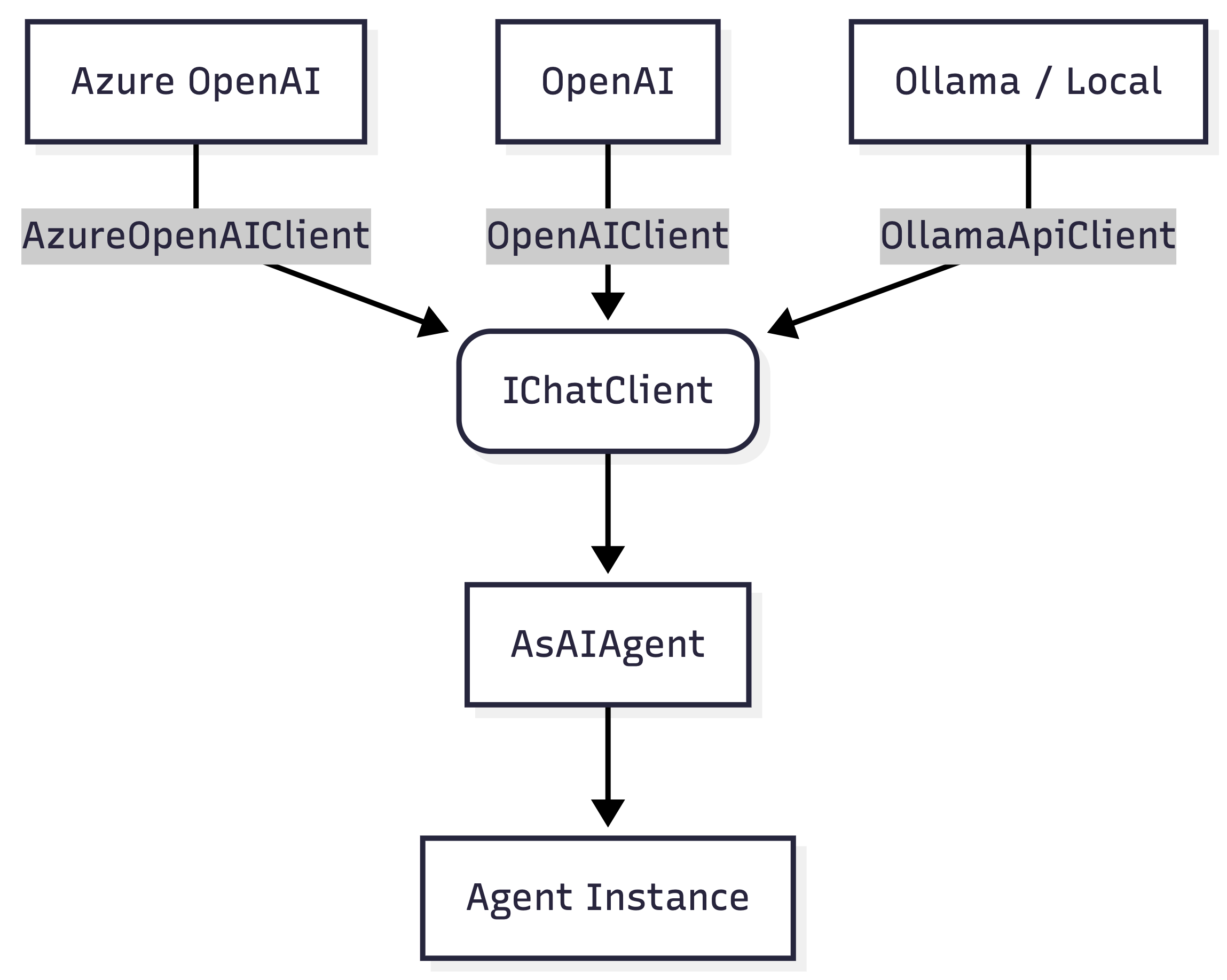
Although this article uses Azure OpenAI and OpenAI for the main examples, the Agent Framework is not limited to those two providers. In .NET, simple agents can also be built on top of other providers such as Anthropic or locally hosted Ollama models, as long as they expose a compatible IChatClient. This is useful if you want local development, lower-cost experiments or just less provider lock-in.
The Foundation: Installing NuGet Packages
One of the biggest advantages of the Agent Framework is that you generally only need two NuGet packages to get a “Hello World” project up and running.
- For Azure Users: Install
Azure.AI.OpenAIalong withMicrosoft.Agents.AI. - For OpenAI Users: Install the
OpenAIpackage along withMicrosoft.Agents.AI. - For Ollama Users: Install the
OllamaSharppackage along withMicrosoft.Agents.AI.
The Code: Establishing the Base Connection
Before we can create an agent, we need to initialize the base communication client.
- For Azure, you initialize the
AzureOpenAIClientby passing in your endpoint URI and your API key. - For OpenAI, you initialize the
OpenAIClientusing only your API key, since the default endpoint for OpenAI’s services is already known by the SDK. - For Ollama, you initialize the
OllamaApiClientusing your local host, port and model.
(Note: In a production ASP.NET Core environment, you should leverage Dependency Injection to manage these connections. A highly recommended architectural preference is to inject the raw base clients (like AzureOpenAIClient or OpenAIClient) as a Singleton, rather than registering the AIAgent or IChatClient directly . Injecting the raw, lightweight client preserves your flexibility to dynamically build specific agents on the fly. Allowing you to easily swap models (e.g., choosing a fast “Mini” model versus a heavy reasoning model) or dynamically append tools without needing separate DI registrations for every scenario .)
// --- Azure OpenAI Setup ---
using Azure.AI.OpenAI;
using Microsoft.Agents.AI;
using OpenAI;
// using OllamaSharp;

// --- Option A: Azure OpenAI Setup ---
var azureClient = new AzureOpenAIClient(new Uri("https://..."), new ApiKeyCredential("..."));

// --- Option B: Regular OpenAI Setup ---
// var openAiClient = new OpenAIClient("your-openai-key");

// --- Option C: Local Ollama Setup ---
// var ollamaClient = new OllamaApiClient(new Uri("http://localhost:11434"), "llama3.2");
From Client to Agent
The next step is to choose a fast and cost-effective model to start with, such as a “Mini” or “Nano” model (e.g., GPT-5-Mini or GPT-5-Nano).
Here is the crucial step where we create the agent: you retrieve the base chat client using the AsChatClient method and then convert it into an AI Agent.
// 1. Bridge the native SDK to the standard .NET Foundation
IChatClient chatClient = azureClient.AsChatClient("gpt-5-mini");

// 2. Upgrade the basic chat client into an autonomous Agent
AIAgent agent = chatClient.AsAIAgent();
The First Prompt: Asking a Question
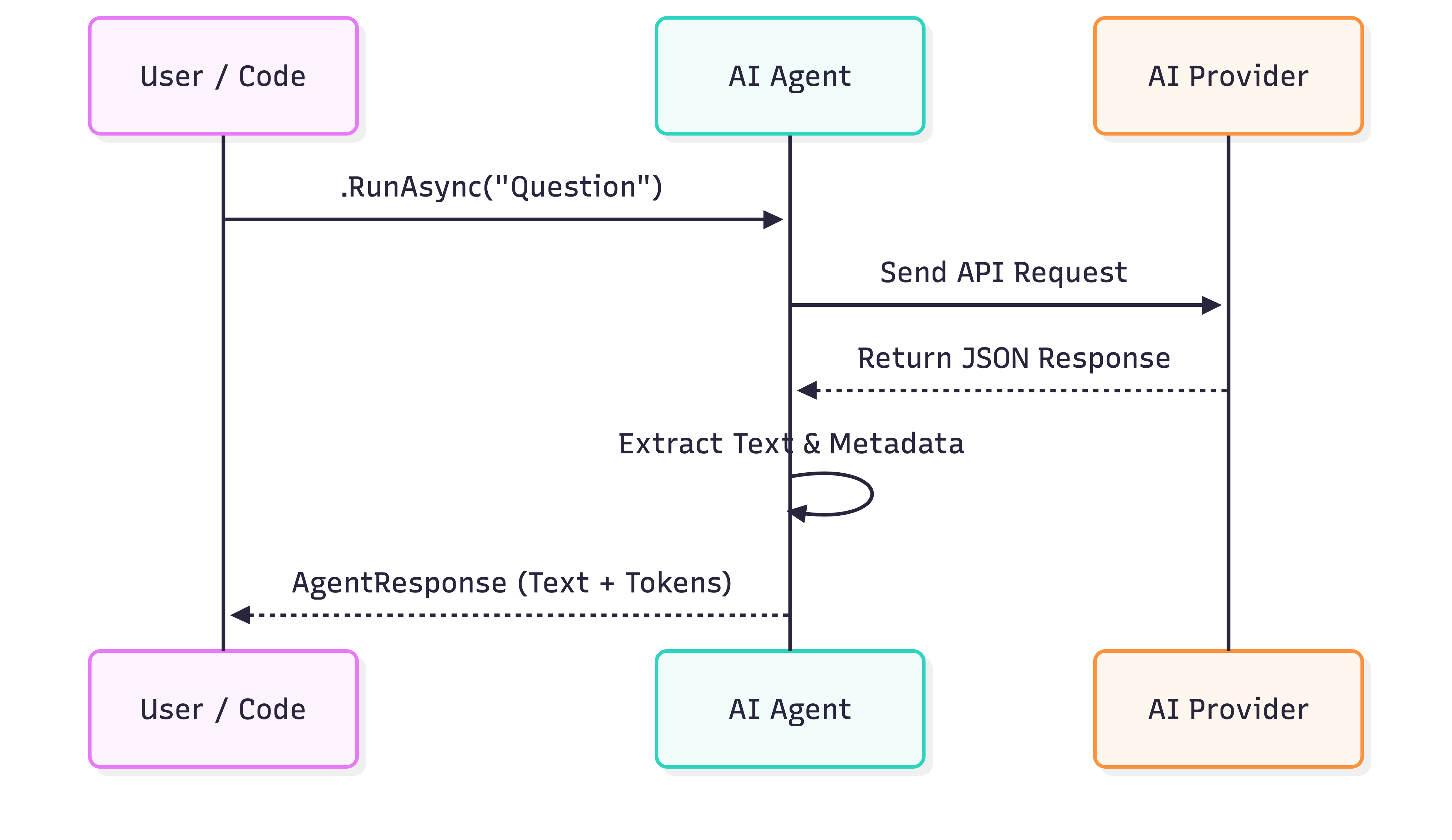
Now that we have our agent, we can pass it a simple question using the RunAsync method and wait asynchronously for the result.
The method returns an AgentResponse object, from which you can easily extract the AI’s actual text.
In the background, this response object also contains a wealth of valuable metadata, such as detailed counts of the input and output tokens consumed by the request. The latter is critical for monitoring your cloud costs later on.
string prompt = "What is the difference between espresso and filter coffee?";

// Ask the agent a question asynchronously
var response = await agent.RunAsync(prompt);

// Extract and print the actual text response
Console.WriteLine($"Agent: {response.Text}");

// Telemetry bonus: check how many tokens you just burned
Console.WriteLine($"Tokens used: {response.Usage?.TotalTokenCount}");
Console.WriteLine($"Input tokens used: {response.Usage?.InputTokenCount}");
Console.WriteLine($"Output tokens used: {response.Usage?.OutputTokenCount}");
Conclusion & Teaser
We now have seen how straightforward it is to create a fully functional AI agent with only minimal configuration and a small amount of C# code.
Our agent is answering questions now, but what happens if we ask it to write a long recipe or an essay? The program blocks execution until the entire response is finished. In my next post, we will dive into Chat vs. Streaming and learn how to print the AI’s responses to the screen character by character.